Try the beta
Open beta.castellan.us in your browser. Activate your invitation, register a passkey and choose to create your encrypted account workspace. No install or model download is required.
Start with an invitation
Use the individual invitation sent to your email address, then register a passkey on your device. A mailing-list signup does not create membership or grant workspace access.
Activate your invitation Sign up for updates
Need help with an invitation? Contact Castellan.

Your workspace
Add useful context, then create your personal Squot with selected approved records. Find relevant knowledge, draft in your style or plan next steps. Hosted writing and planning use your explicit consent.

Your connected agents
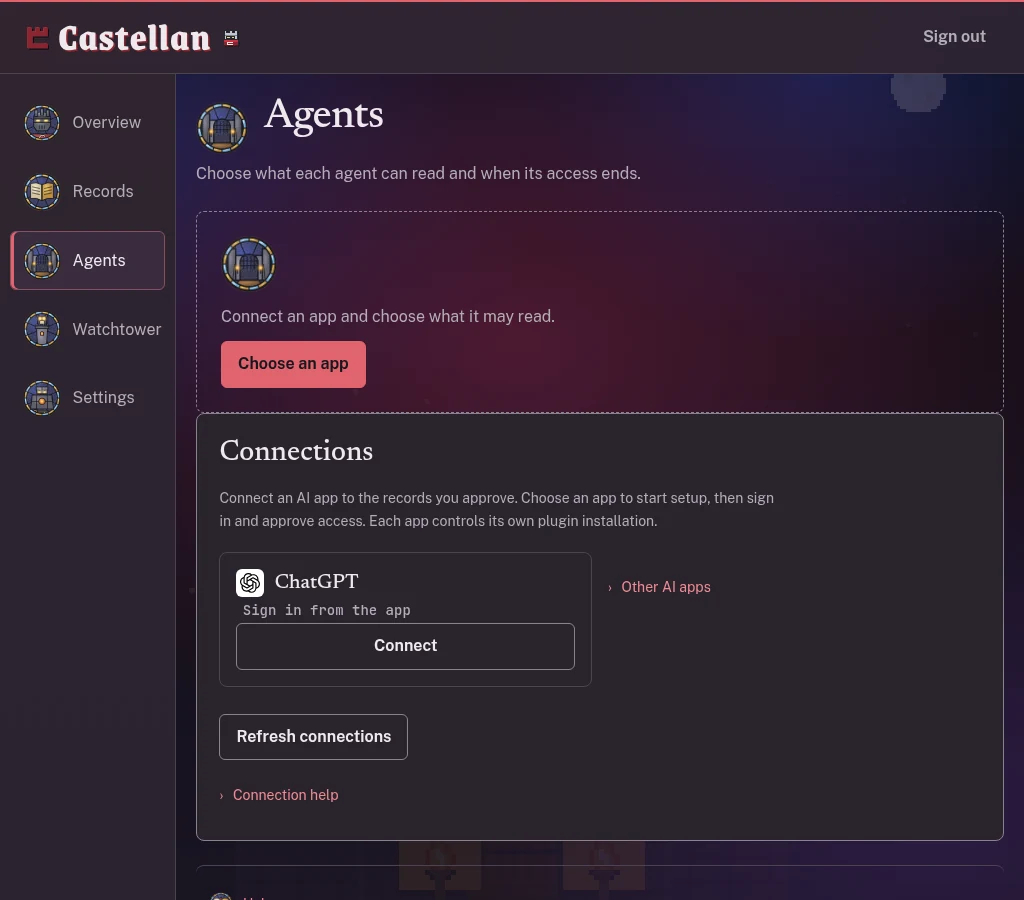
Add the MCP connection URL to a compatible agent app. Approve its scopes, selected records and expiry, then send a first context request. Connector availability depends on the provider, plan and organization settings.
Optional local access on Mac and Windows
Keep an encrypted workspace on your computer with the local package. Records, imports, exports and compatible local agents work while the runtime is running and unlocked. Online providers require network access and cannot reach a loopback endpoint.
The separate developer runtime
The repository also contains the local socket broker, credential vault, Guardian integrations and developer tools. This Python and Node runtime is separate from the browser workspace and the Mac and Windows packages. Read the developer setup notes on GitHub.
Your access and data choices
No payment information is collected in the invitation flow. Review Beta terms and Beta privacy for membership, storage, sharing and deletion details. Recovery replaces previous passkeys and ends other beta sessions.
Five rooms, one personal workspace
- Overview
Resume saved work and open your personal Squot.
- Records
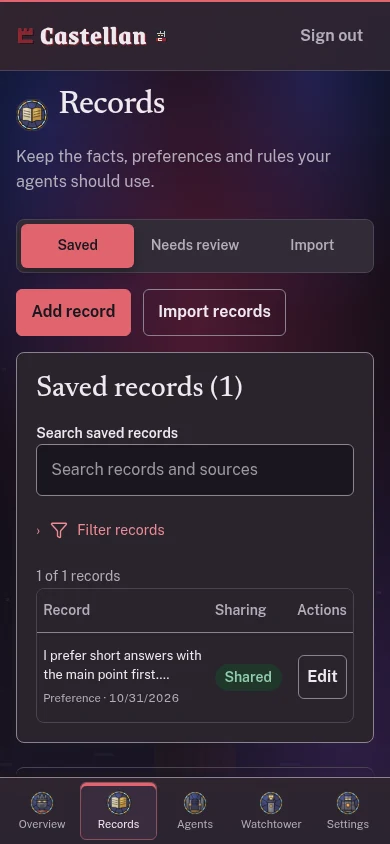
Records hold approved context. Review imported and agent suggestions before saving them.
- Agents
Agents controls each connection. Choose its purpose, scopes, records and expiry.
- Watchtower
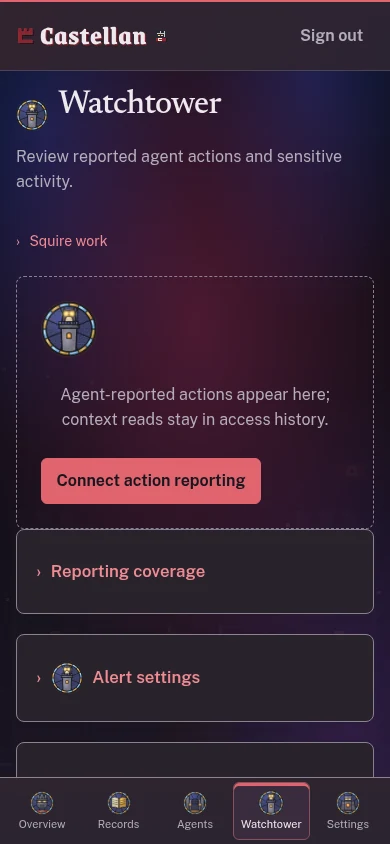
Inspect recorded reads, decisions and attributed action reports.
- Settings
Manage passkeys, sessions, backups and the storage mode you choose.
A request you can approve or refuse
An agent asks to read selected goals for a planning task. In the Gatehouse within Agents, preview the exact access, choose Approve or Refuse, then inspect the recorded decision in Watchtower. Ending access stops future reads.
Fictional example: John Smith's fixture workspace. The example contains no personal account data.